Related Links
Arq Backup
The Arq® Backup software for your Mac or Windows PC uses filesystem snapshot technology to allow point-in-time recovery of your files. Use Arq software to backup your files on IDrive® e2 storage.
Create Access Keys from the IDrive® e2 account and use them to establish a connection with Arq Backup.
- Sign up for an IDrive® e2 account.
- Click Access Keys.
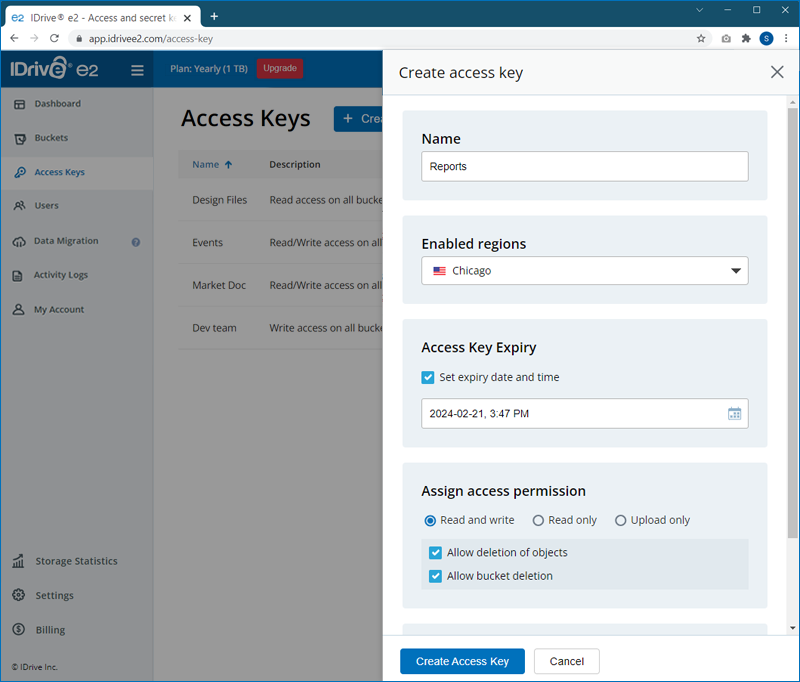
- Click Create Access Key. Provide the name, select a region, assign permissions and buckets.
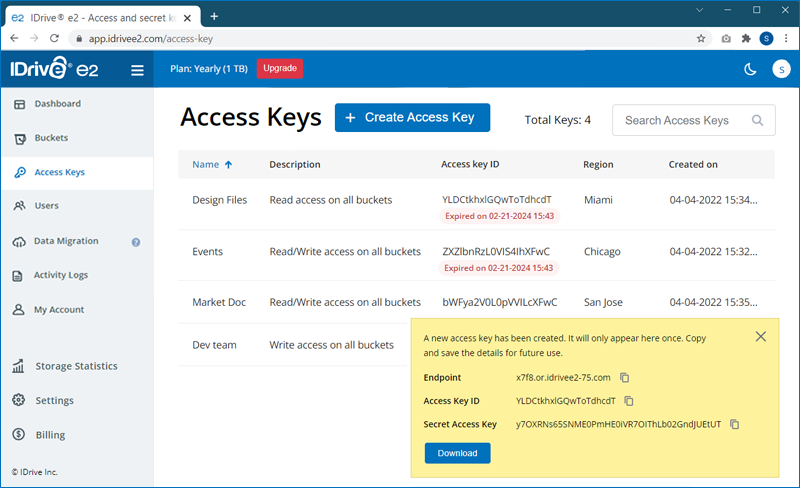
- Click Create Access Key. An Access Key ID and Secret Access Key will be generated.
- Download / copy and save the details of the access key.
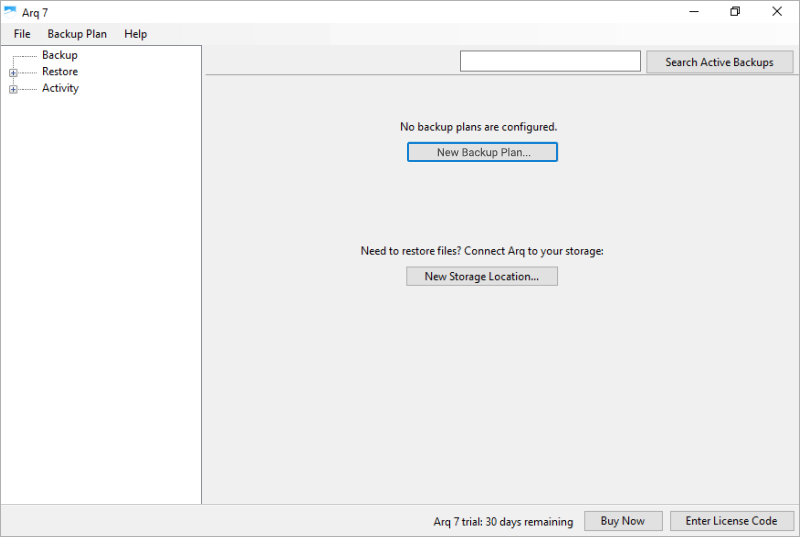
- Go to your ArqMonitor (ARQ Console). Click New Backup Plan.
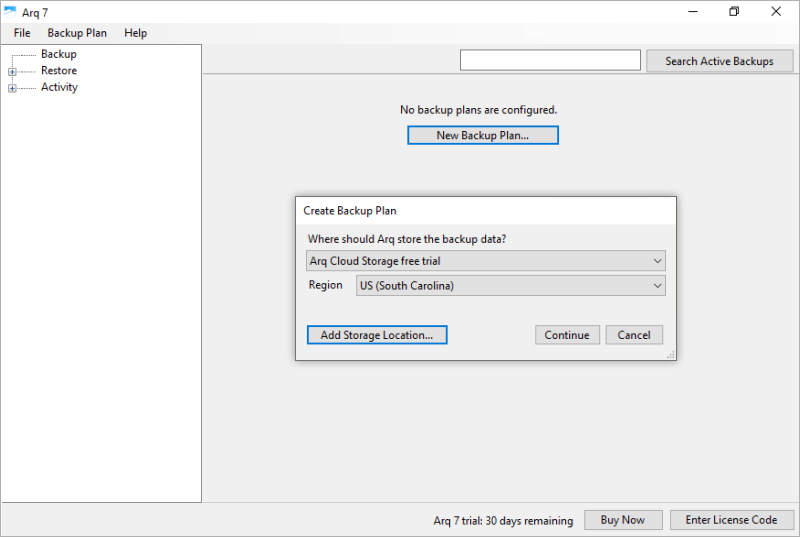
- Click Add Storage Location.
- Select S3-compatible server from the list.
- Provide the Access key ID, Secret Key, and storage endpoint URL, generated in IDrive® e2.
- Click Add Storage Location.
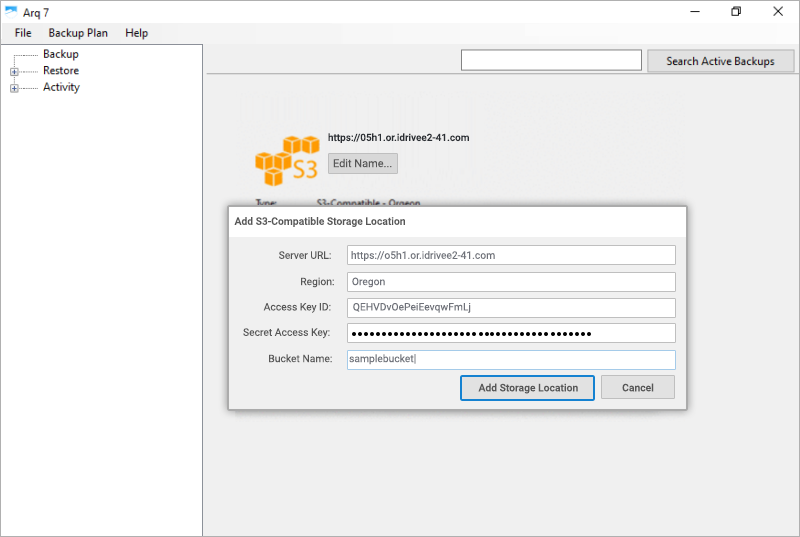
- In the Create Backup Plan window, enter the Destination URL where your backups should be stored. Ensure to use https while providing the destination URL.
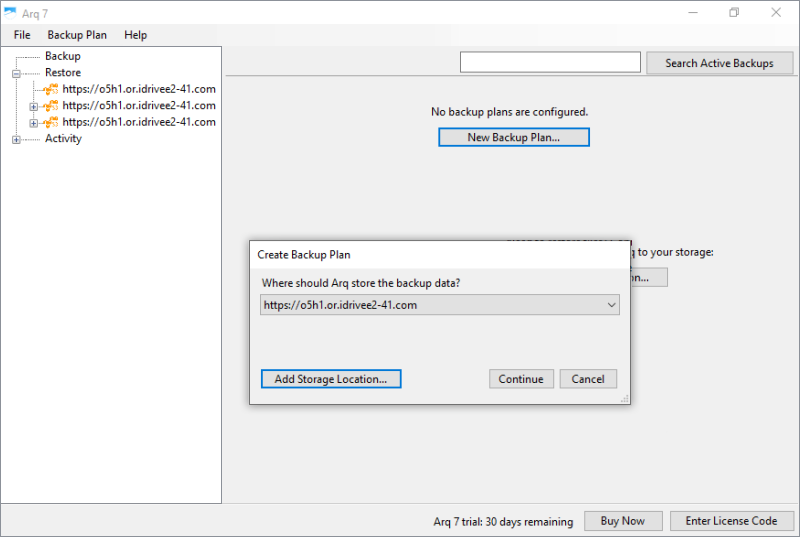
- Click Continue.
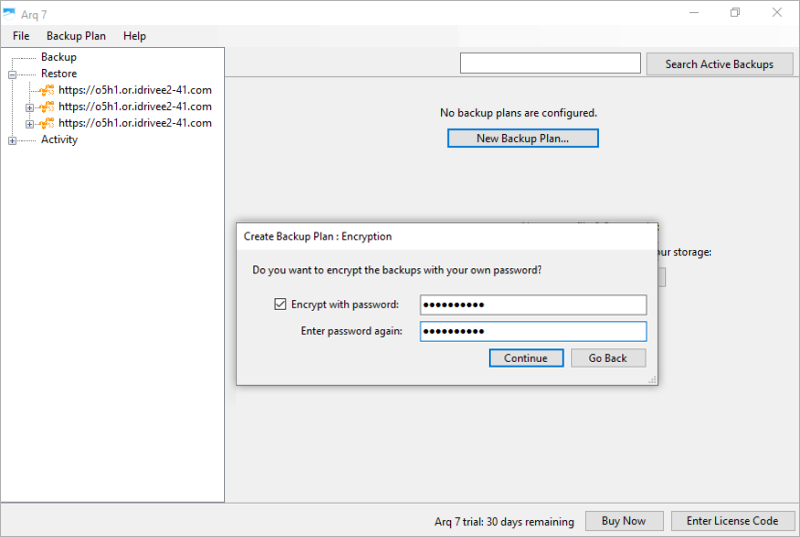
- Set up your encryption password and click Continue.
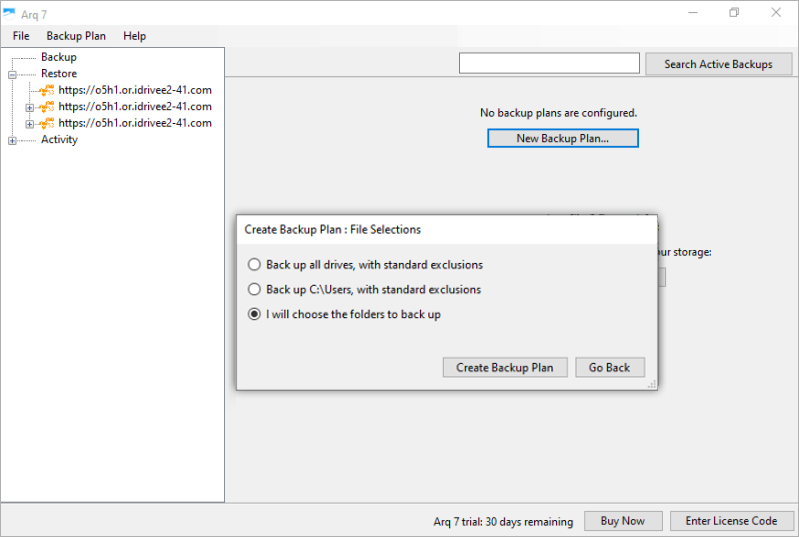
- Select the required options and click Create Backup Plan.
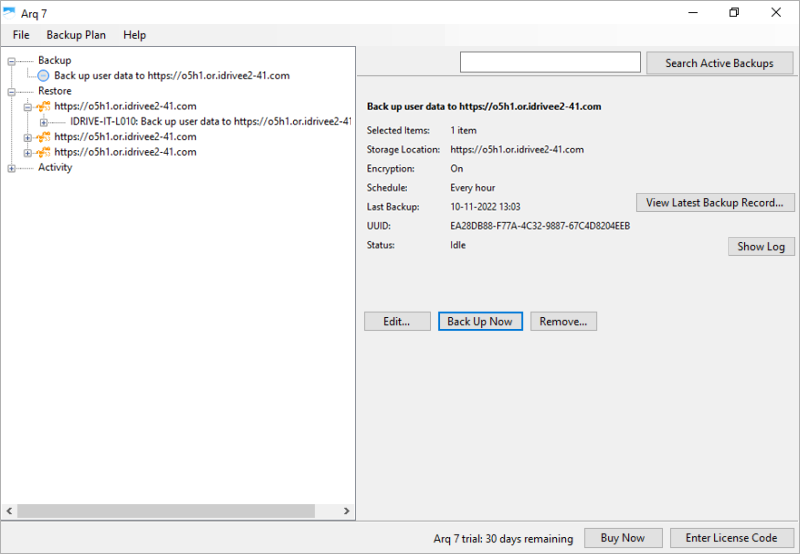
- Click Back Up Now to start the backup.
Note: Data restoration is handled by your specific backup solution provider and is affected by multiple variables that are unique to your environment. For application-related enquiries/support, it is strongly recommended you seek guidance from the technical team of your backup solution provider.