Frequently Asked Questions

Cline Backup

Cline Backup

If your question is not addressed below, please contact us through our support form and we'll get back to you shortly.

What is Backup for Cline in IDrive?
What data is backed up?
Are Cline scheduled tasks backed up?
Does Backup for Cline include cloud-stored AI conversations?
What happens to provider API keys and credentials during backup?
What data is excluded from the backup?
How do I back up my Cline data?
Why can't I schedule a backup for Cline?
How do I restore my Cline data?
Do I need to close Cline before restoring my backup?

What is Backup for Cline in IDrive?

Backup for Cline in IDrive helps protect locally stored data associated with the Cline VS Code extension and Cline desktop application. It backs up supported AI conversation history, workspace data, application settings, configurations, and scheduled tasks, allowing you to restore your Cline data if it is lost.

What data is backed up?

IDrive backs up supported Cline data stored locally on your computer, including:

  • AI chat history and context, along with associated workspace data stored by Cline
  • Cline VS Code extension and desktop application settings and state
  • Configured Cline scheduled tasks

Are Cline scheduled tasks backed up?

Yes. Backup for Cline includes supported locally stored scheduled task configurations, allowing you to restore your configured tasks when needed.

Does Backup for Cline include cloud-stored AI conversations?

No. Backup for Cline covers supported data stored locally on your computer. Data available only through Cline's cloud services and not cached locally is not included.

What happens to provider API keys and credentials during backup?

Provider API keys, credentials, and other secrets used to connect to AI providers are not included in the backup. You must re-enter these credentials after restoring your Cline data.

What data is excluded from the backup?

IDrive excludes temporary and cache files, application logs, cached build data, provider credentials, API keys, and other secrets to keep backups efficient.

How do I back up my Cline data?

To back up your Cline data using the IDrive application,

  1. Sign in to the IDrive application using your Username and Password.
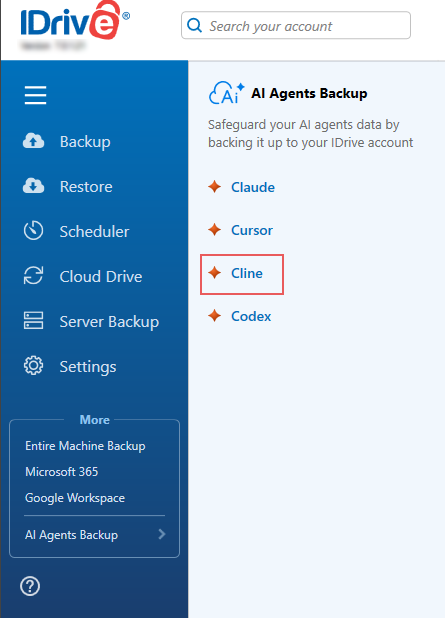
  2. Click AI Agents Backup.
  3. Select Cline from the list of AI agents. The Backup tab opens by default.
    Cline on left-hand side
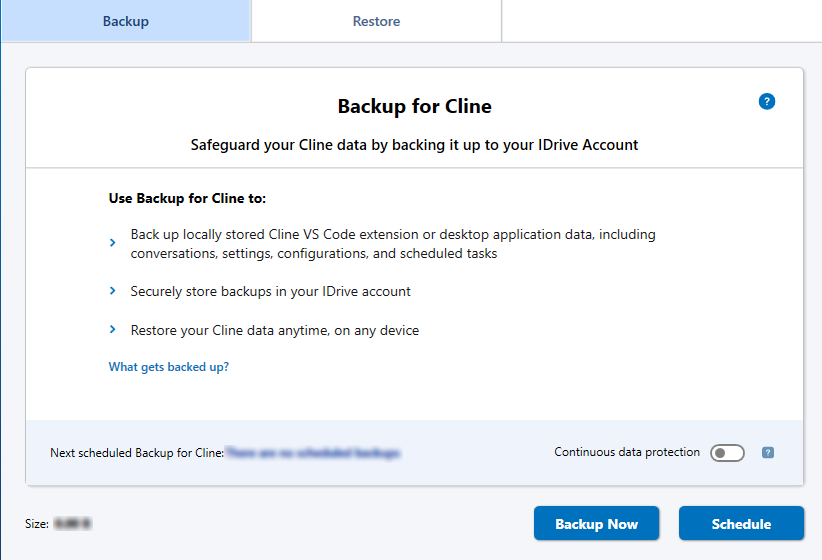
  4. Click Backup Now to initiate an immediate backup. To configure automatic backups, click Schedule and set your preferred backup schedule.
    Backup Now for Cline

Why can't I schedule a backup for Cline?

IDrive must detect Cline-related files or folders on your computer before you can schedule a backup. Make sure the Cline VS Code extension or Cline desktop application is installed and has been used at least once before setting up your backup.

How do I restore my Cline data?

To restore your Cline data using the IDrive application,

  1. Sign in to the IDrive application using your Username and Password.
  2. Click AI Agents Backup.
  3. Select Cline from the list of AI agents.
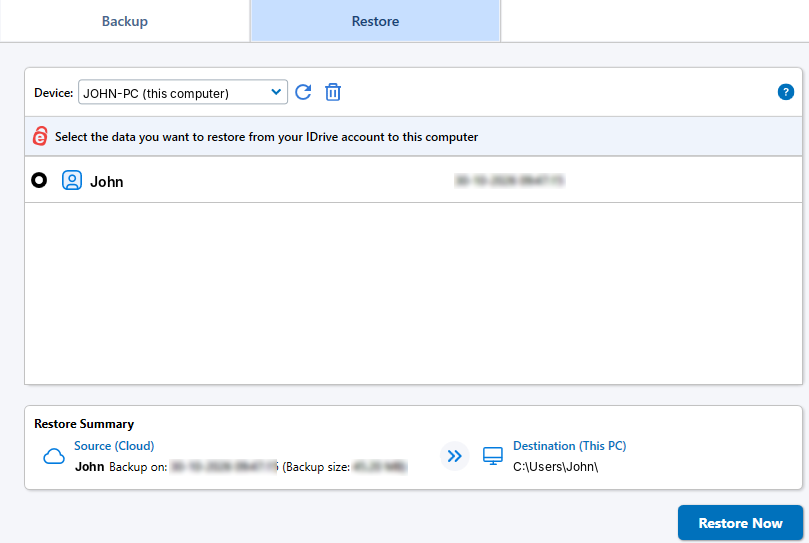
  4. Click the Restore tab.
  5. Select the computer from which you want to restore the backup.
  6. Select the backup profile you want to restore.
    select backup profile to restore

    Note: Make sure VS Code and the Cline desktop application, if installed, are completely closed before proceeding with the restoration. The Cline desktop application may continue running in the background even after its window is closed. Close any running 'bun' process associated with Cline (cline-cli.exe) using Task Manager.

  7. Click Restore.

Once the restoration is complete, reopen VS Code or the Cline desktop application and reconnect your AI provider to access your restored Cline data.

Do I need to close Cline before restoring my backup?

Yes. Close VS Code if you use the Cline VS Code extension, or close the Cline desktop application if you use the standalone app, before starting the restore process.

If you use the Cline desktop application, check Task Manager for any running 'bun' process (cline-cli.exe) associated with Cline and end the task. Restoring files while the application or its background processes are running may prevent the restoration from completing successfully.

1-818-485-4333