How do I add my Linux machine to my IDrive account and manage it via web?
If you are a new user,
Download the latest IDrive for Linux package to your Linux machine.
Copy or move the downloaded IDrive for Linux package to a location of your choice in your Linux machine.
Provide an appropriate permission (executable permission) to the downloaded idriveforlinux.bin chmod a+x idriveforlinux.bin
Run the command ./idriveforlinux.bin --install for installation, and then navigate to /opt/IDriveForLinux/bin.
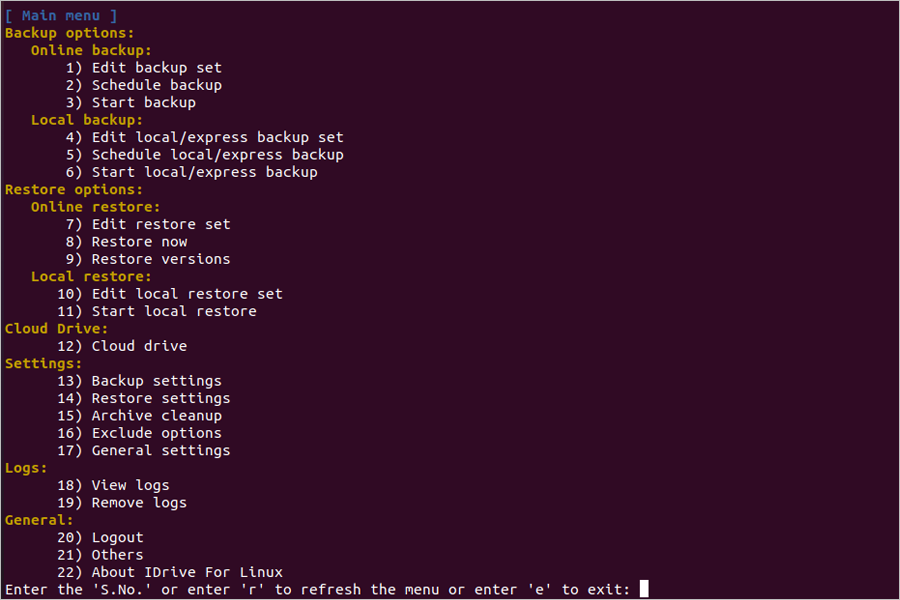
Execute the command ./idrive and choose an option to perform operations like backup, local backup, restore, local restore, scheduling, settings, viewing logs, and more.
Log in to your account via the web interface and your Linux machine will appear in the web console now. You can remotely configure the backup set, manage backup schedules, settings etc.
If you are an existing user,
Run . ./idrive --check-update OR ./idrive -C from your IDrive for Linux package location on your Linux machine and follow the instructions.
Post updating your package to the latest version, you must login to your account.
Your Linux machine will appear in the web console now. You can remotely configure backup set, manage backup schedules, settings etc.
Note: If you are using an aarch64 machine and are unable to access the Dashboard, follow the steps below:
Run the following command: sudo vi /etc/ld.so.conf.d/idrive_libs.conf
Add the following path to the file /etc/ld.so.conf.d/idrive_libs.conf: /opt/IDriveForLinux/bin/Idrivelib/dependencies/python/lib
Run the following command: sudo ldconfig
Open a new terminal and run the following command: /opt/IDriveForLinux/bin/Idrivelib/dependencies/python/dashboard -V
If the command returns an error, remove the /etc/ld.so.conf.d/idrive_libs.conf file and run: sudo ldconfig
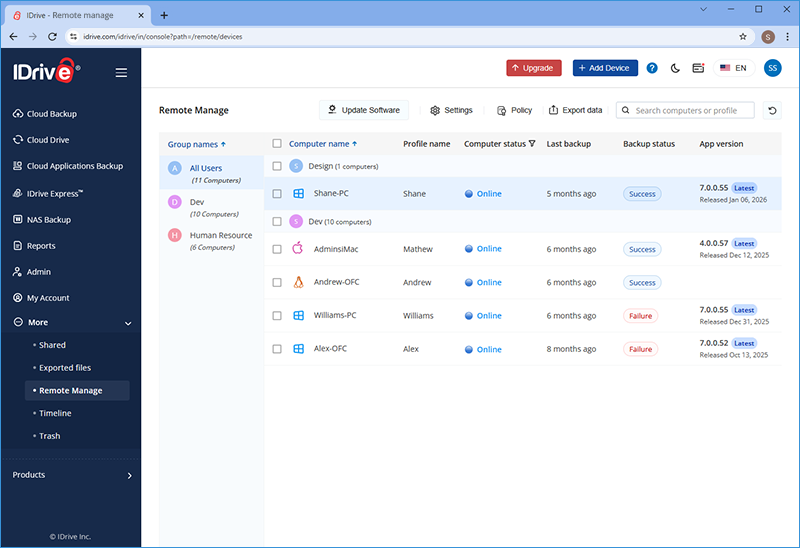
You can manage all your connected Linux machines from the 'Computers' tab on the web console. You can also view backup details like last backed up time and the status of each backup.
Click the 'Computers' tab. The list of all the backed up computers appear here.
Click the Linux machine name to initiate or schedule backups, perform restores, configure settings and view logs.
The following statuses indicate that the connected computer is online or offline:
The computer is online and web access is enabled.
The computer is offline and web access is enabled.
Indicates that web access is disabled for the computer
Why am I unable to access my Linux machine via the web console?
If you are unable to access your Linux machine via the web console, it could be because of the following reasons:
Dashboard service is not running
Open Terminal and run the following command: idrive
From the main menu, select 'Others' and then choose 'Services'.
Check if the Dashboard service is 'Running'. If it is not, select 'Restart Dashboard service' to start it.
After completing these steps, try accessing your machine via the web console. If the issue persists, contact support.
What is Archive Cleanup?
Archive Cleanup compares the files of your local storage, selected for backup, with the files in your IDrive online backup account. It then deletes the files present in your account but not on your local machine. This feature thus helps you to free up space in your online backup account.
When you try to set periodic archive cleanup via the web console, you can change number of days after which you like to run archive cleanup and percentage of the total no. of files to be considered for deletion. This percentage based control helps to avoid large-scale deletion of files in your account.
Archive cleanup will run only after the days you have selected above from the current date.
How do I backup my Linux server using IDrive?
You can backup your Linux servers using IDrive for Linux package. To perform all your IDrive operations, download the package and follow the instructions provided in the readme.
Can I schedule backups from my Linux server?
Yes. You can do the schedule backup using IDrive backup schedule option.
Is there any preliminary setting that needs to be done before I start my backup?
Ensure that you have provided appropriate permissions (executable permission) to the IDrive for Linux package.
When I restore data, the permissions and owner / group information is different from source. Why?
IDrive stores your data with a fixed owner / group and set of permissions that may be different from original set of owner / group and permissions. After you restore the data, ensure that the permissions and ownership information is modified appropriately.
Is there any simple way to backup MySQL database?
Follow the below steps to backup your MySQL database.
Create MySQL database dump file using following command $mysqldump sample_database > /usr/local/mysql_sample_database
While configuring my account, I see two options, ‘Create new Backup location’ and ‘Select from the existing backup location’. Why is that?
While configuring your account, two options such as, ‘Create new Backup location’ and ‘Select from the existing backup location’ may appear. This is because, one or more devices are configured with your account but there is no backup location configured for that particular device from which you have logged into the account. So you can either create new backup location for that device or link the device with the existing Backup Location.
Why can't I see the ‘Backup type’ for my IDrive account?
For some IDrive accounts users may be unable to see ‘Backup type’, because the default backup type for these accounts is set as Mirror.
What is default exclude?
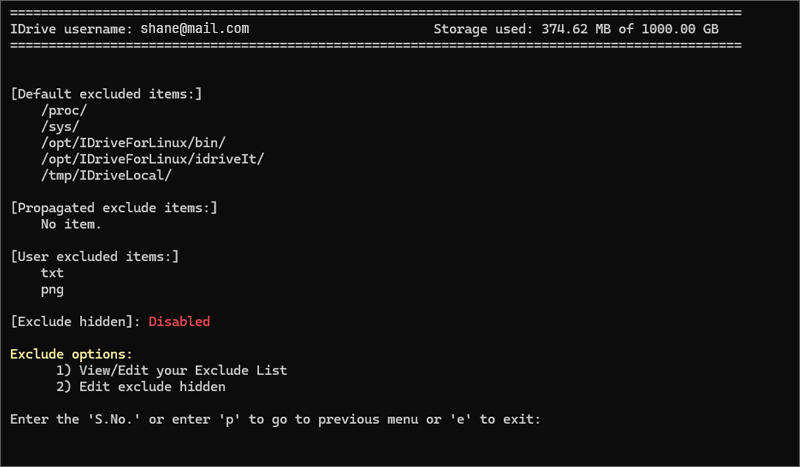
It refers to the types of files or directories that the IDrive backup service automatically excludes from backup operations. This is typically done to save storage space and avoid backing up unnecessary or temporary files.
Example:
/proc/
/sys/
/opt/IDriveForLinux/bin/
/opt/IDriveForLinux/idriveIt/
/tmp/IDriveLocal/
What is propagated exclude?
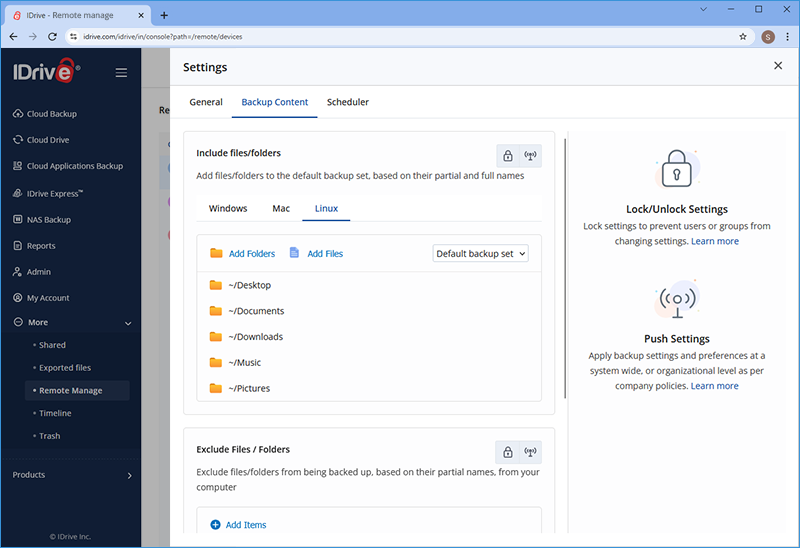
Login to your IDrive account.
Go to 'More' and select 'Remote Manage'.
Under 'Backup Content', choose 'Linux'.
In the 'Exclude Files/Folders' section, specify the items you want to exclude and push them to the respective device by clicking .
Note:
Excluded items propagated to devices can only be removed the same way.
If an administrator has set exclude values for a user, it can only be modified/removed by an administrator.
What is user exclude?
It refers to specific files or directories that a user can choose to exclude from their backup. This allows users to customize their backup settings by selecting certain files or folders that they don’t want to be included in the backup process.
This feature helps manage backup storage efficiently and can speed up the backup process by excluding unnecessary data.
To edit files/folders for user Exclude,
Open Terminal and run the following command: idrive
From the main menu, select ‘Exclude options’.
Choose the option 'View/Edit your Exclude List'. The file will open in a text editor.
Add the full path, partial path, or regex pattern of the files or folders you want to exclude, placing each entry on a new line.
Save and exit.
Example
Your Backupset contains /home/Documents. To exclude /home/Documents/temp, enter the folder path /home/Documents/temp in the User Exclude List. To exclude all .pst files in /home/Documents, enter pst in the User Exclude List. To exclude folders/files with numeric values in their names, such as /home/Folder01, enter Folder\d+ in the User Exclude List.
Note: Users can provide full paths, partial paths, and regex patterns, all within the same user exclude section.
How do I uninstall the IDrive for Linux package?
Uninstalling the IDrive for Linux package from your system will leave the files/folders of your system liable to digital disasters.
To uninstall the IDrive for Linux package,
Open Terminal and run the following command: idrive
From the main menu, select ‘Others’ and then choose ‘Uninstall’. Follow the on-screen instructions.
This will automatically remove all IDrive for Linux package files, including any dependency files. It will also clean up any scheduled backup or restore jobs, if present.
My scheduled jobs are not running. What should I do?
IDrive cron service must be running for all scheduled jobs to work.
To verify status of the cron service and restart,
Open Terminal and run the following command: idrive
From the main menu, select 'Others' and then choose ‘Services’.
Check if the IDrive Cron service is 'Running'. If it is not, select 'Restart IDrive Cron service' to start it.
My local Express drive is not listed for selection. How can I get it listed?
The Express drive must be mounted on your Linux machine to get listed on the web console. If the connected device is not listed, then you need to manually enter a mount path to use Express Backup.
I am getting the message "You do not have permission to modify the selected settings. Contact the admin of your account". Why?
If you are getting this message, it means your account administrator has locked the setting for you. You must contact your admin to unlock and allow access.
What is snapshot restore feature?
Snapshots are historical view of your data, stored in IDrive account, which allow you to perform point-in-time recovery. They are useful especially in case your systems were attacked by ransomware or other malicious software.
If your data is infected with encryption-based ransomware, all you need to do is select a time-line before the infection and restore it.
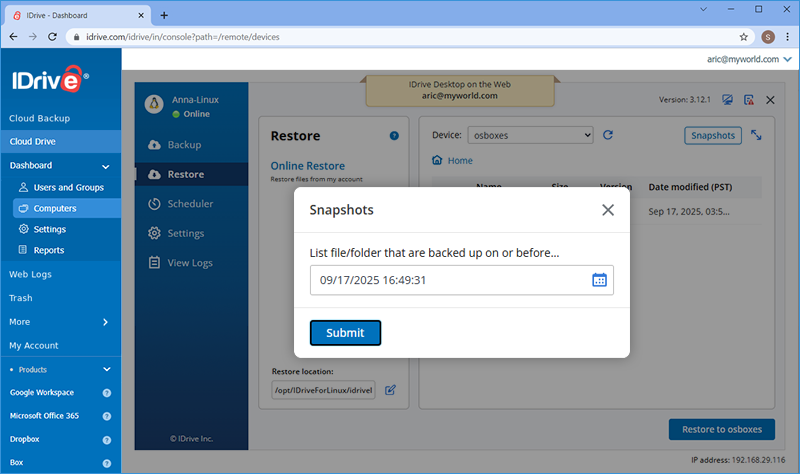
To perform snapshot based restore,
Go to the 'Restore' tab and click 'Snapshots'.
Select the date and time and click 'Submit'. A list of all the data backed up on or before the selected date appears.
Select the required files/folders and click 'Restore to <Computer Name>'.
Note: For some accounts Snapshots are not available.
What is IDrive Cloud Drive CLI?
The Cloud Drive CLI is a command-line utility in IDrive that allows you to manage sync operations directly from a terminal or command prompt. It is ideal for users who prefer command-based workflows or operate in environments without a graphical user interface (GUI), such as headless servers.
If you prefer a graphical interface, Cloud Drive is also available in the IDrive desktop application for Linux. While the GUI version provides a desktop-based, point-and-click interface, the CLI version is recommended for users comfortable working with terminal commands or managing server-based systems.
How do I access my synced files and folders?
Once synchronization is complete, your files and folders are available in the configured local sync folder. You can access them using standard Linux commands or your preferred file manager.
How do I log in and start Cloud Drive?
To log in to your IDrive account, run the following command:
./idriveforlinux.bin -install
Requirements
Email: Your registered IDrive email address
Password: Your IDrive account password
Private Key (pvtkey): Required only if your account uses private key encryption for added security
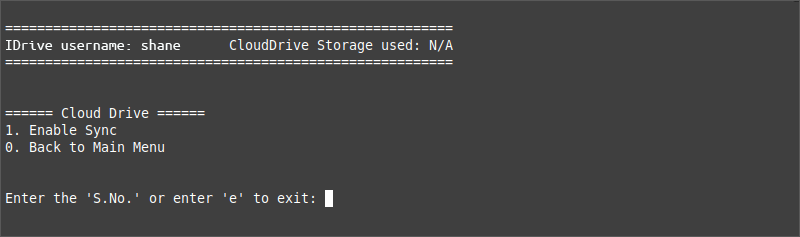
Once you have logged in, select Cloud drive from the main menu and install Cloud Drive to explore the available Cloud Drive options.
How do I enable Cloud Drive?
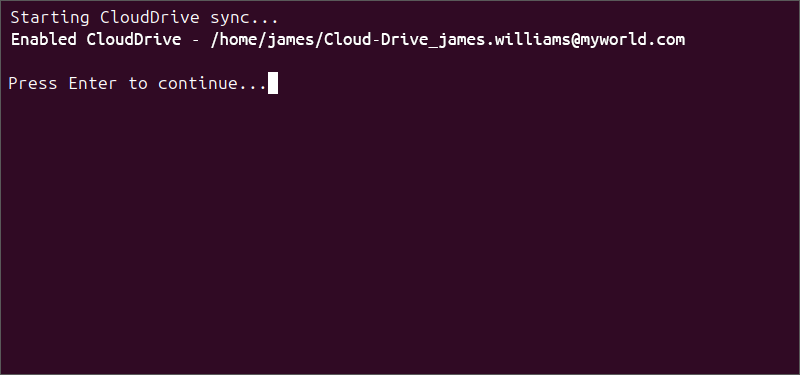
After logging in and accessing the Cloud Drive menu, select Enable Sync to enable Cloud Drive sync.
How do I disable Cloud Drive?
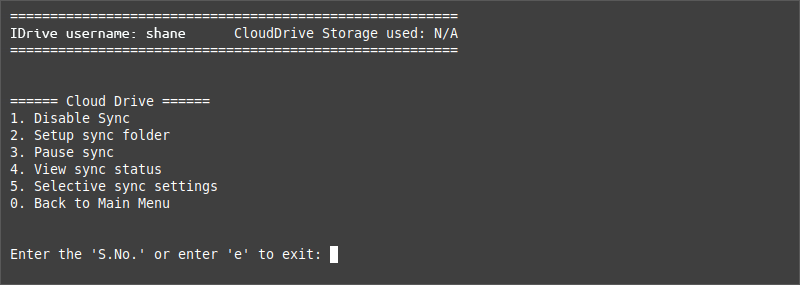
If Cloud Drive is enabled and you want to disable it, go to the menu and select Disable Sync.
How do I check the sync status?
To view the sync status, go to the menu and select View sync status.
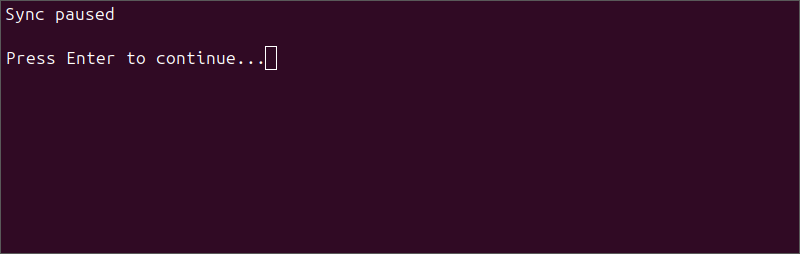
How do I pause syncing?
To temporarily pause syncing, go to the menu and select Pause sync.
Syncing will remain paused until you manually resume it.
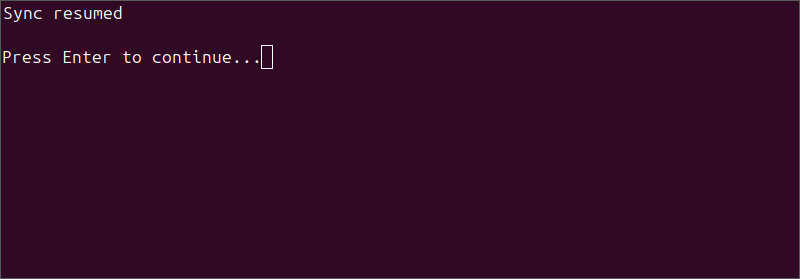
How do I resume syncing?
To resume syncing after it has been paused, go to the menu and select Resume sync.
Syncing will restart and your account will be updated.
What is Selective Sync?
Selective Sync is a feature that allows you to choose specific folders to sync to your local system. It helps you keep only the files you need on a particular computer, making it useful for saving disk space on systems with limited storage.
How do I exclude single or multiple folders from syncing?
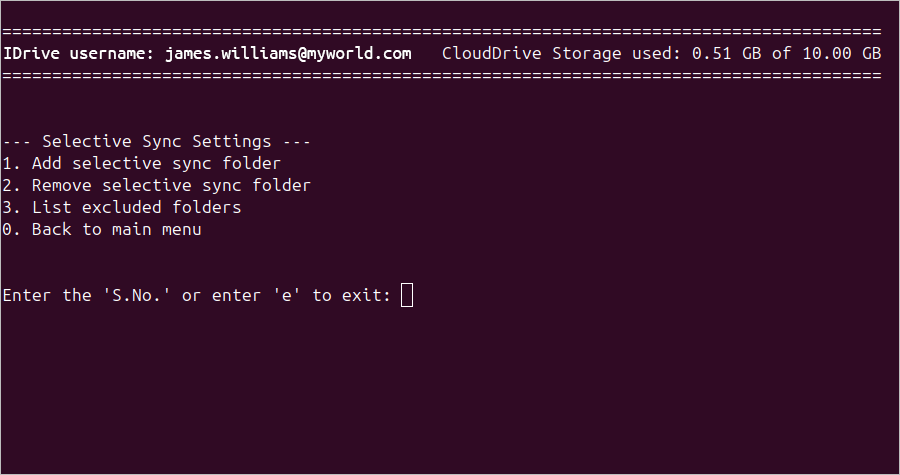
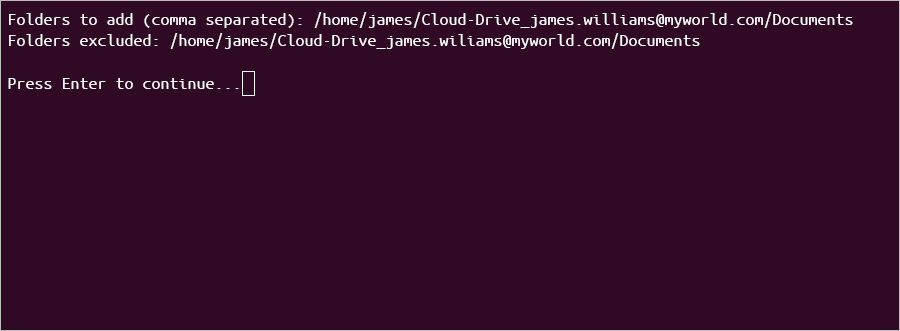
To exclude folders from syncing (Selective Sync), go to the menu and select Selective sync settings, then choose Add selective sync folder.
This will prevent the selected folders from syncing with your cloud storage while keeping them on your local system. To exclude multiple folders, separate the folder paths with a comma.
How do I include excluded folders again?
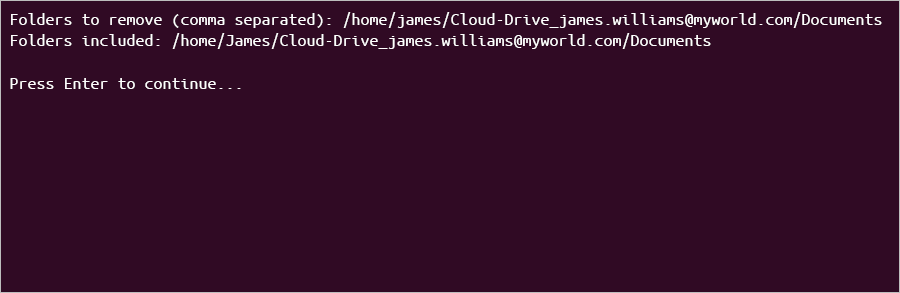
To include previously excluded folders back into synchronization, go to the menu and select Selective sync settings, then choose Remove selective sync folder.
This will add the selected folders back to your sync list. To include multiple folders, separate the folder paths with a comma.
How can I view excluded folders?
To view the list of folders currently excluded from syncing, go to the menu and select Selective sync settings, then choose List excluded folders.
This will display all folders that are not being synced.
How do I change the sync folder location?
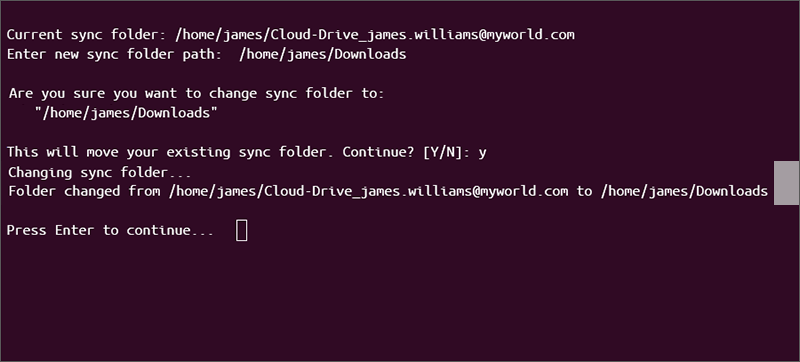
To change the location of the Cloud Drive folder, go to the menu and select Setup sync folder.
This updates the sync folder to the new location and ensures that files are synced from the specified path.
How do I exit the Cloud Drive menu?
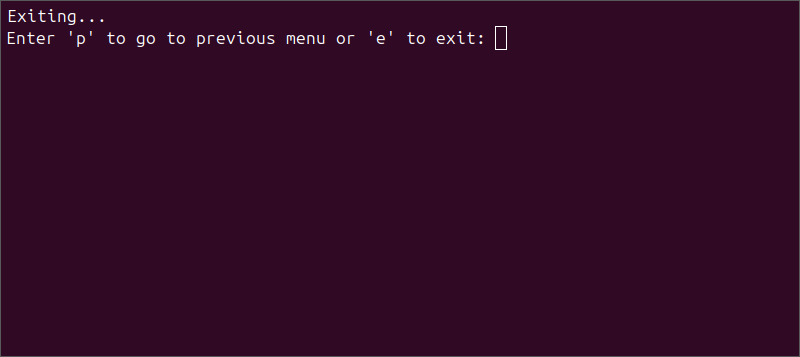
To exit the Cloud Drive menu, select Back to Main Menu.
Is my data encrypted?
Yes. All data transferred to and from your IDrive account is encrypted using secure transmission protocols. If private key encryption is enabled, your files are encrypted with a key that only you can access.
Where can I get help or support?
If you need further assistance, you can:
Refer to the official IDrive documentation.
Use the cloud-drive command for local assistance
Contact IDrive support
How do I contact the IDrive support team for queries, suggestions, or feedback?
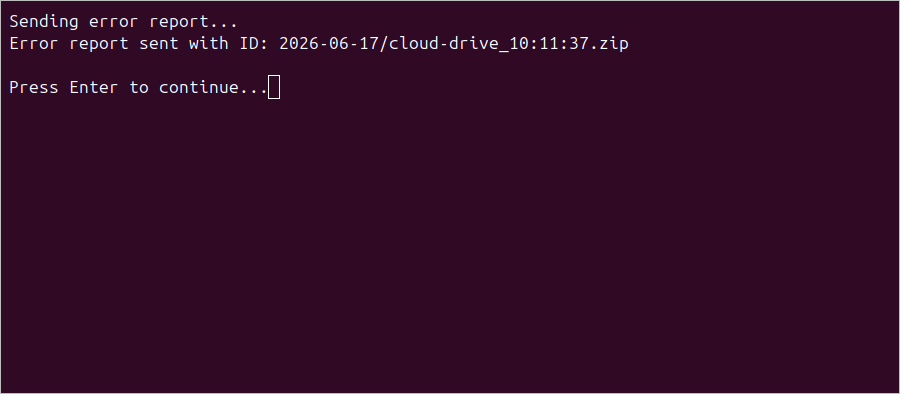
To contact the support team, go to the menu and select Send error report.
This will share the relevant logs with the support team for further assistance.
Which operating systems are supported for Cloud Drive?
GUI-based OS:
Ubuntu
Linux Mint
Debian
Fedora
CentOS
CLI-based OS (Headless systems):
Ubuntu
Linux Mint
Debian
Fedora
CentOS
Arch Linux
Are there any dependencies or system requirements for Cloud Drive to work on Linux?
Yes. Cloud Drive requires certain system packages to operate on Linux. The required dependencies vary depending on your Linux distribution and desktop environment. The installer automatically detects and installs the required dependencies during setup.
RPM-based distributions
attr
python3-psutil
nautilus-python/nemo-python/python3-caja (based on the file manager in use)
redis-server/valkey-server
Debian-based distributions
attr
python3-psutil
python3-nautilus/nemo-python/python3-caja (based on the file manager in use)
redis-server/valkey-server
Note: The installer automatically detects and installs the required dependencies. No additional steps are required.
 The computer is online and web access is enabled.
 The computer is offline and web access is enabled.
 Indicates that web access is disabled for the computer
 .
.